How to get raw headers in Outlook (Desktop)

Raw headers are needed to verify SPF / DKIM / DMARC. Forwarded emails often remove or change those details.

  • Open the suspicious email (double-click to open it in its own window).
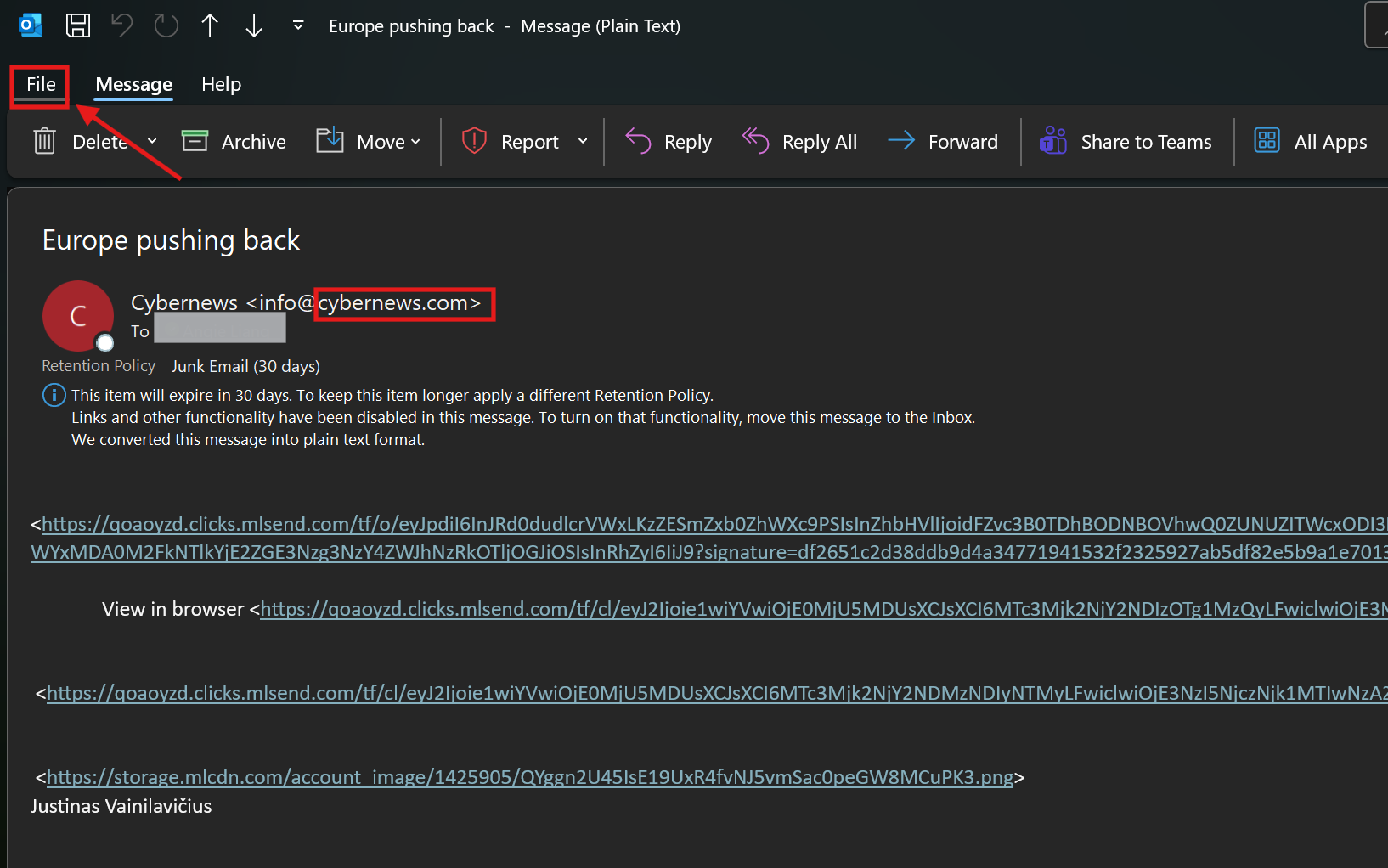
    Step 1: Open the suspicious email in its own window
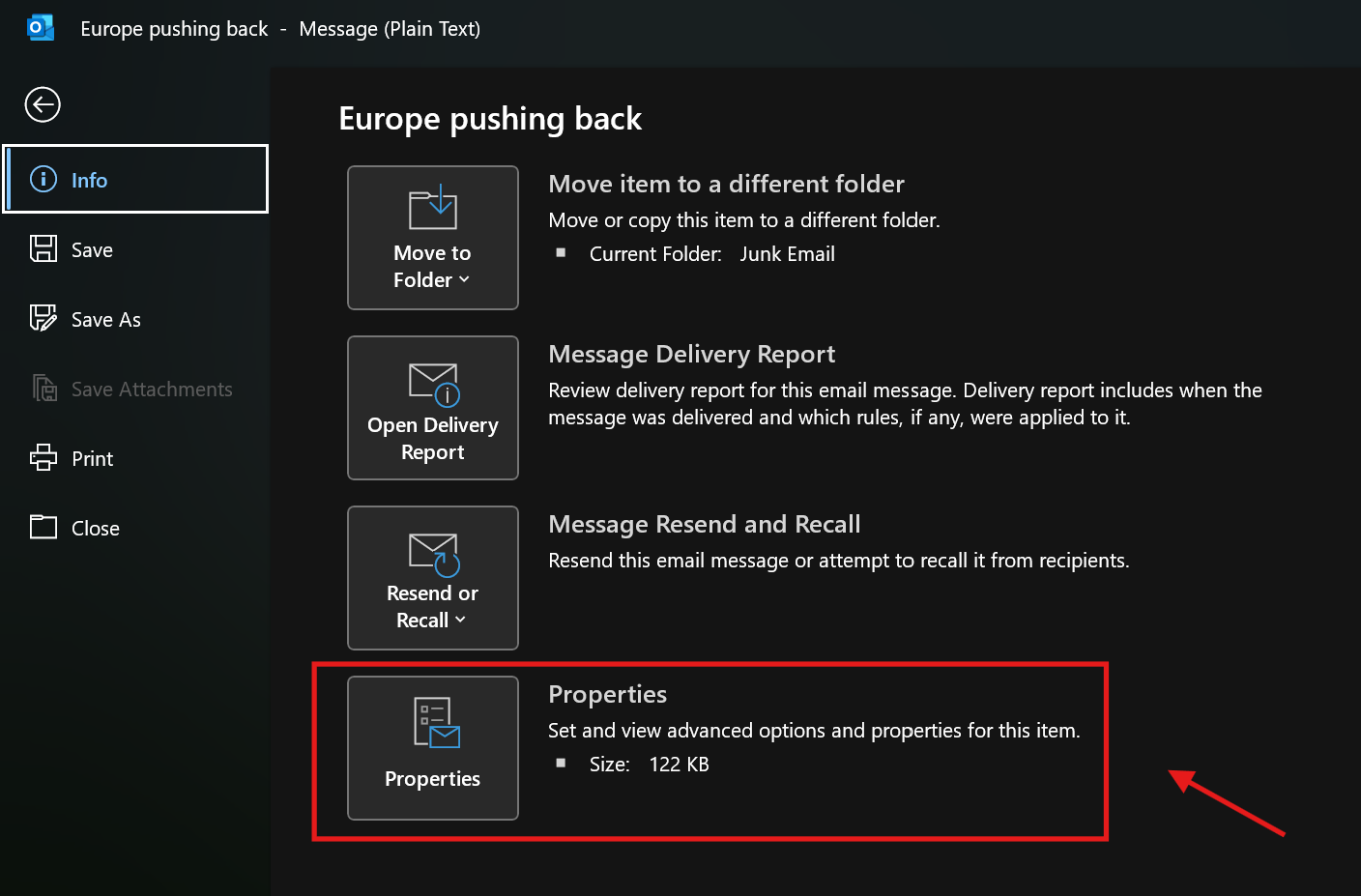
  • Classic Outlook (Windows): Click FileProperties.
    Step 2: File to Properties in Classic Outlook
  • In the Internet headers box, select all text and copy it.
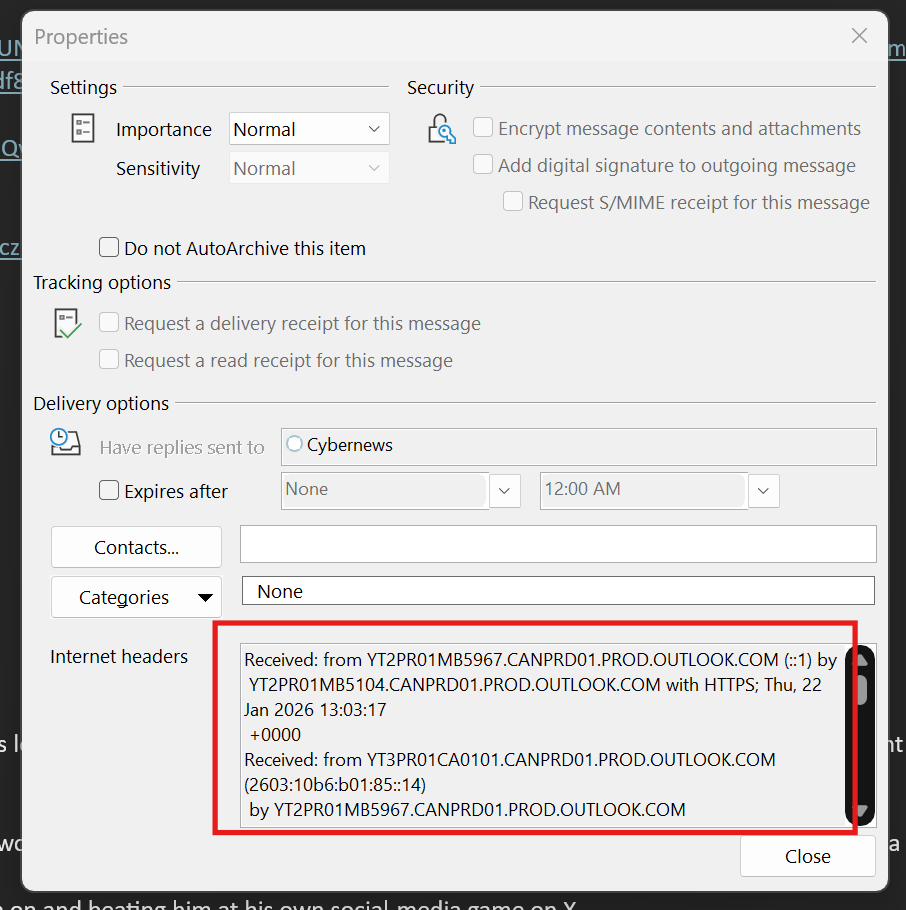
    Step 3: Copy the Internet headers text
  • Paste the copied headers into the checker tool.
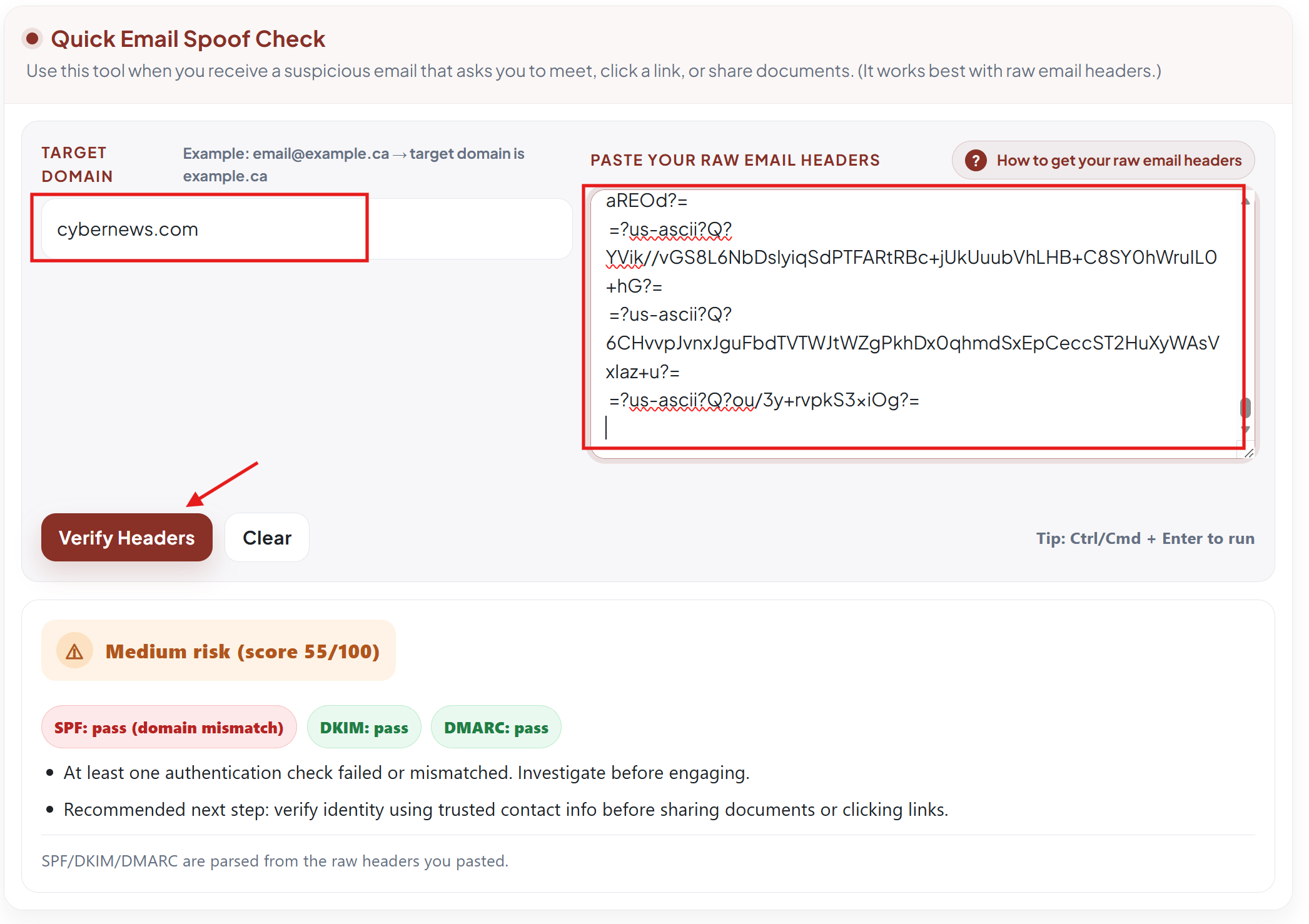
    Step 4: Paste headers into the checker tool
Other Outlook versions:
New Outlook (Windows): look for “View message source” (⋯ menu) Outlook (Mac): Message → “View Source” or similar
Menu names can vary slightly by Outlook version. The goal is always to copy the full “message source” / “internet headers.”

How to get raw headers in Gmail (Web)

In Gmail, the raw headers are available under “Show original.” Copy the headers and paste them into the checker tool.

  1. Open the suspicious email in Gmail (web browser).
  2. Click the three-dot menu (⋯) in the top-right of the message.
  3. Select Show original.
  4. Copy the full header/source content (you can usually select all, then copy).
  5. Paste the copied headers into the checker tool.
Tip: You’re looking for lines like Authentication-Results, Received, and Return-Path. If those aren’t present, you may not be viewing the raw message source.

How the Quick Email Spoof Check Works

It reads your email’s raw headers and summarizes three authentication checks: SPF, DKIM, and DMARC.

SPF: “Was this server allowed to send for the domain?”

SPF is like a guest list. If an email claims it’s from @company.com, SPF checks whether the sending server’s IP is on company.com’s approved list.

SPF=pass ✅ SPF=softfail ⚠️ SPF=fail 🚩
Where it’s found: usually inside Authentication-Results (or Received-SPF) in the headers.

DKIM: “Is there a tamper-proof signature?”

DKIM is like a sealed stamp added by the sender’s domain. It helps prove the message was signed by that domain and wasn’t changed in transit.

DKIM=pass ✅ DKIM=none ⚠️ DKIM=fail 🚩
Where it’s found: often shown in Authentication-Results and a separate DKIM-Signature header.

DMARC: “Do the results match the ‘From’ address you see?”

DMARC is the final check. It confirms that SPF or DKIM passed and that it aligns with the visible “From” domain (the one the user sees).

DMARC=pass ✅ DMARC=fail 🚩
Why it matters: DMARC can catch “looks legit” emails where SPF passes for a different domain.